A break blocks a set time on your calendar, such as lunch, admin time, supervision or a webinar you’re attending. Breaks can happen once or repeat on a schedule.
Note: All clients, names, emails, appointments and other data shown in the screenshots are sample data we created for this guide. They are not real people or real records.
When to use this
- You take the same break every day or week, like lunch or a standing meeting.
- You need to block a one-off hour for something else.
If you’ll be away from your practice instead, use Out of office (see the next article).
Steps
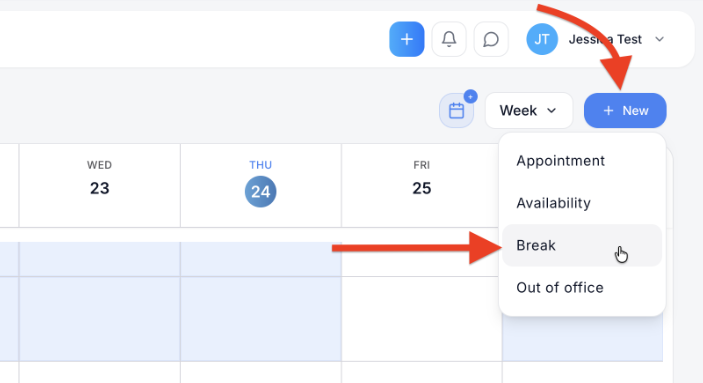
1. In Pro Calendar, click + New, then choose Break. The break form opens with the Break tab highlighted. If you picked the wrong option, switch using the tabs at the top of the form: Appointment, Availability, Break and Out of office.
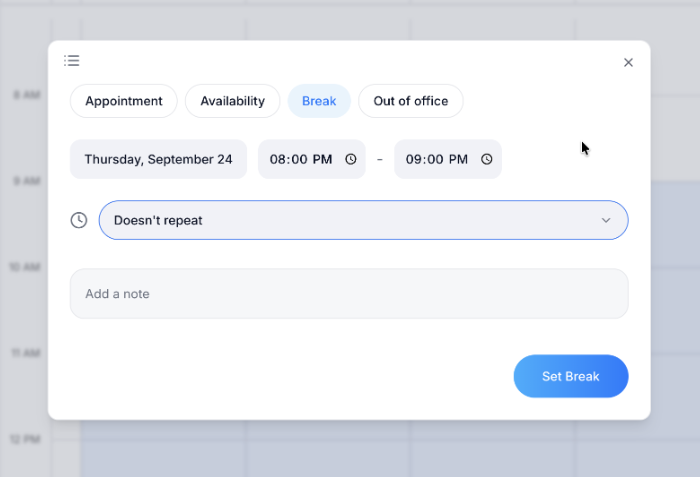
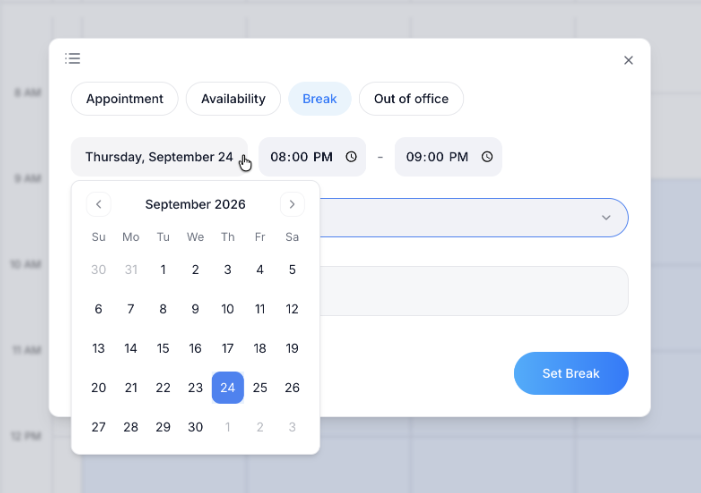
2. Click the date to choose the day of the break. A month calendar opens. Click a day to select it. Use the arrows to move to another month.
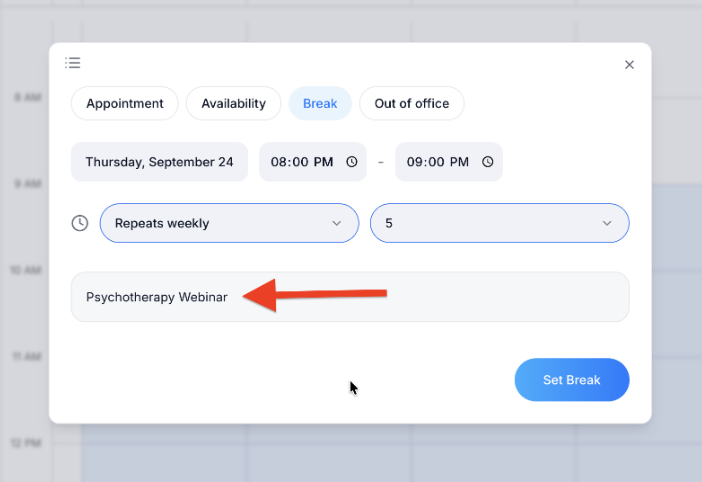
3. Click the clock icon next to the start time, then the clock icon next to the end time, to set when the break begins and ends. In the example, the break runs from 08:00 PM to 09:00 PM.
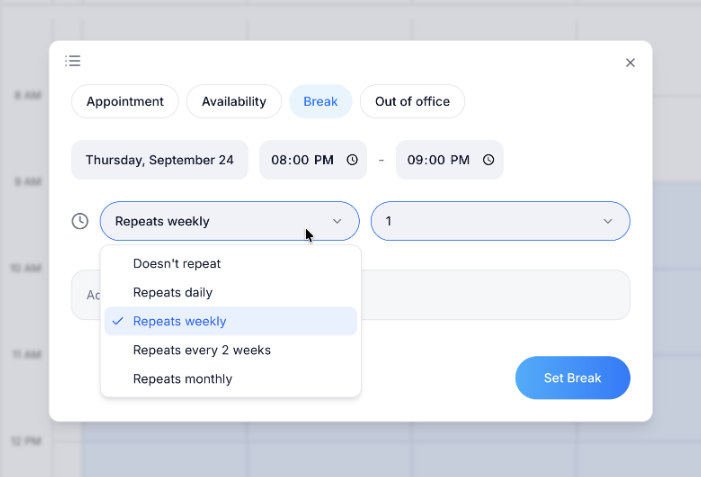
4. Choose whether the break repeats. Click Doesn’t repeat to open the list, then choose Doesn’t repeat, Repeats daily, Repeats weekly, Repeats every 2 weeks or Repeats monthly. When you choose a repeat option, a second dropdown appears beside it. Choose a number from it. In the example, it’s set to 5.
5. In Add a note, type a name for the break. This note becomes the break’s title on your calendar, so use something you’ll recognize at a glance, such as “Psychotherapy Webinar.”
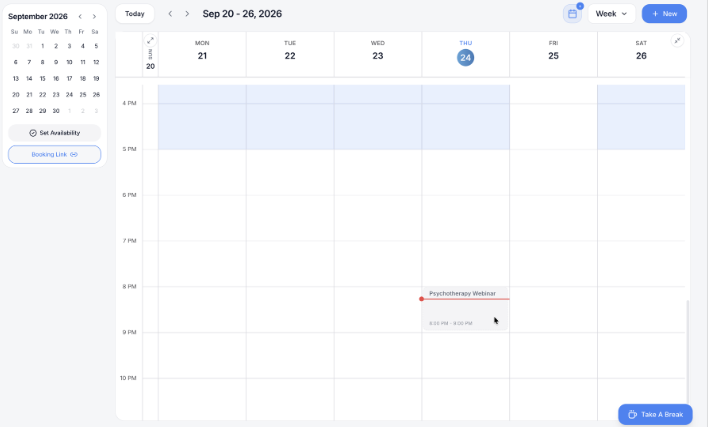
6. Click Set Break. The form closes and the break appears on your calendar as a grey block showing its title and time. The red line across the calendar marks the current time.
Take a quick break with Take A Break
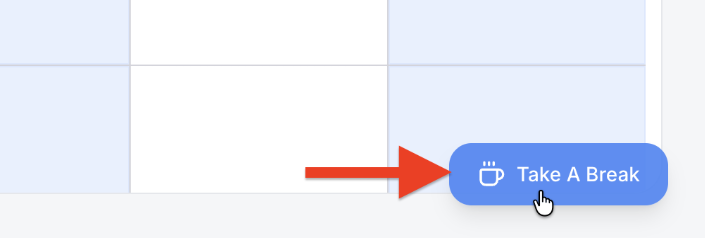
To add a break without opening + New, use the Take A Break button in the bottom right corner of Pro Calendar.
1. In Pro Calendar, click Take A Break in the bottom right corner.
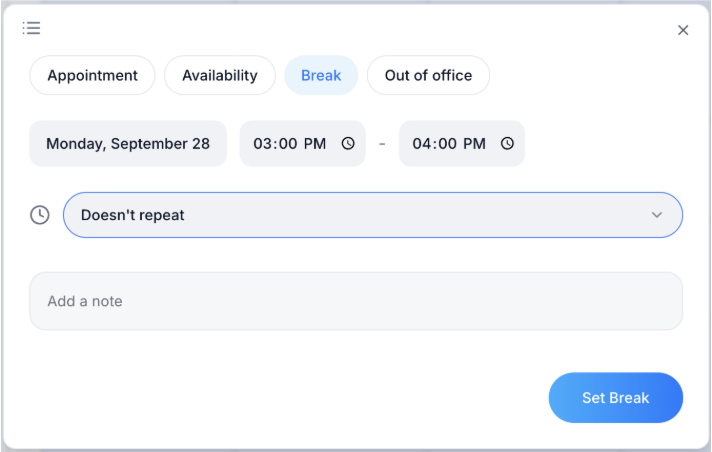
2. Check the break details. The break form opens with the Break tab selected, and today’s date and a one-hour time slot already filled in, for example Monday, September 28, 03:00 PM – 04:00 PM. Change the date, times or repeat setting if you need to, and optionally add a note.
3. Click Set Break. The break appears on your calendar as a grey block.
View or delete a break
Click a break on your calendar to open its details on the right. You’ll see the title, the type (Break), the date and time, the length, and how often it repeats.
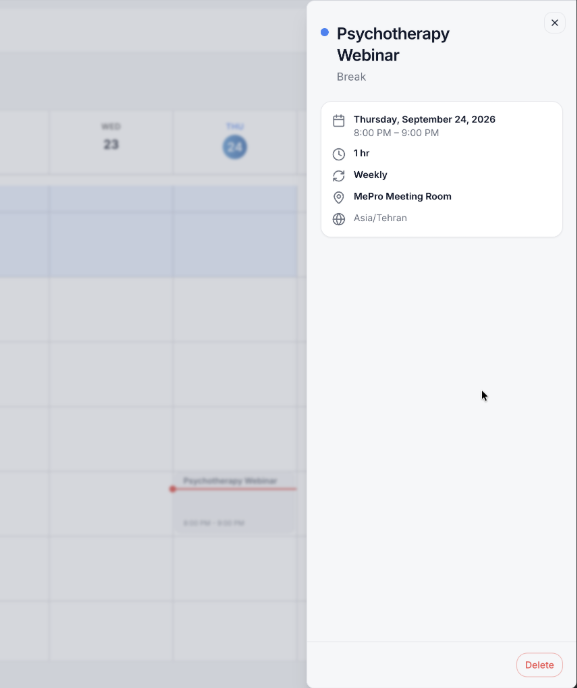
To remove the break, click Delete at the bottom of the panel.

