Your booking link is the web address you give clients so they can book with you. Copy it once your availability is set, then share it wherever clients look for you.
Note: All clients, names, emails, appointments and other data shown in the screenshots are sample data we created for this guide. They are not real people or real records.
When to use this
- You’ve just set your availability and are ready to take bookings.
- You want to add a booking link to your website, email signature or social profile.
- A new client asks how to book.
Steps
1. In the left sidebar, click Pro Calendar.
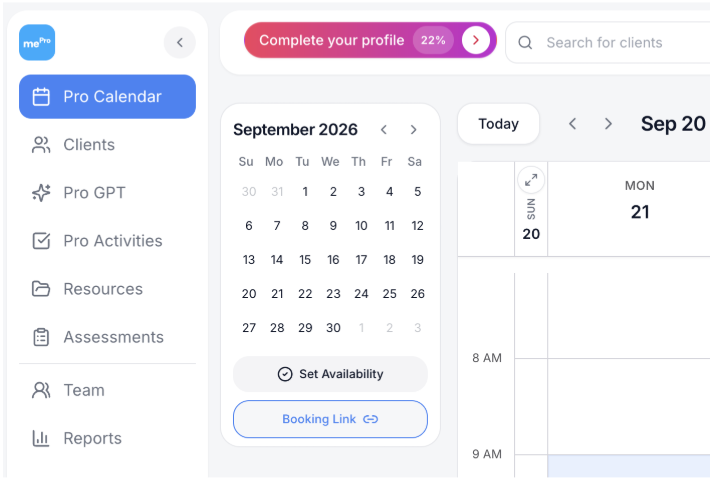
2. Under the small month calendar, click Booking Link. Your booking link is copied to your clipboard.
3. Paste the link where clients will see it, such as your website, email signature or a message to a client.
Check your link
Open the link in a private or incognito browser window to see it the way a client will.
What clients can book
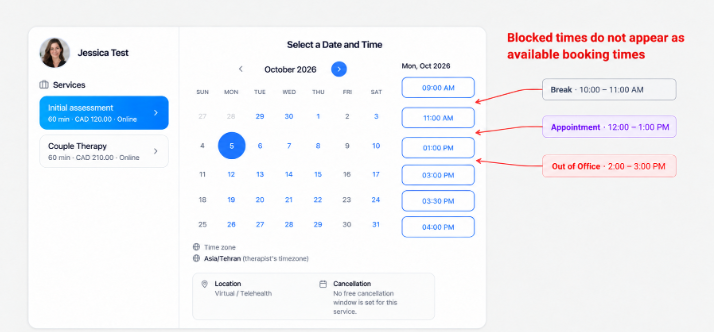
Clients only see the times you’re available. Any time you’ve blocked with a Break, an existing Appointment or Out of office doesn’t appear as an available booking time.
In the example below, Monday has a break from 10:00 to 11:00 AM, an appointment from 12:00 to 1:00 PM and out-of-office time from 2:00 to 3:00 PM, so those times are missing from the list the client sees.