Use Pro GPT to plan treatment, draft ideas or talk through a case. You can start a general chat, or link a client so Pro GPT uses their record as context.
Note: All clients, names, emails, appointments and other data shown in the screenshots are sample data we created for this guide. They are not real people or real records.
When to use this
- You want ideas for a treatment plan, for example a 6-session CBT outline.
- You want to think through a client’s case using what’s in their record.
- You have a general clinical or practice question.
Start a chat
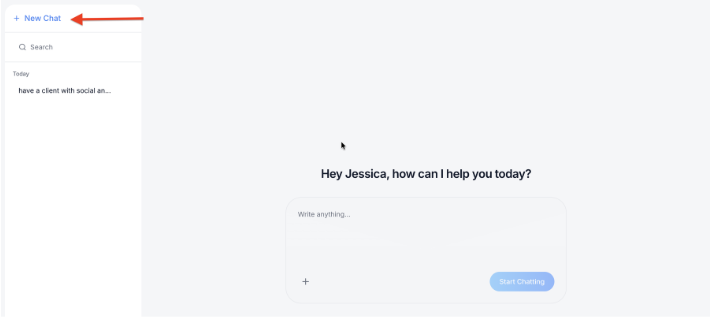
1. In the left sidebar, click Pro GPT, then click New Chat. Pro GPT greets you, for example Hey Jessica, how can I help you today?, with a Write anything… box. Your earlier chats are listed on the left under dates such as Today.
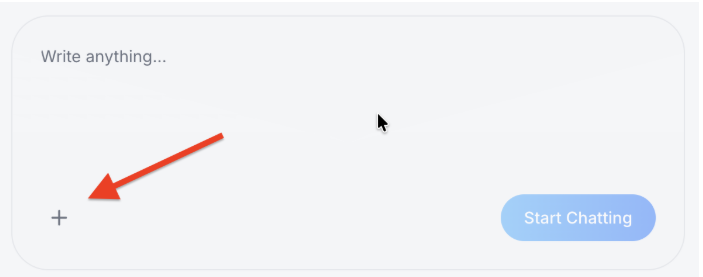
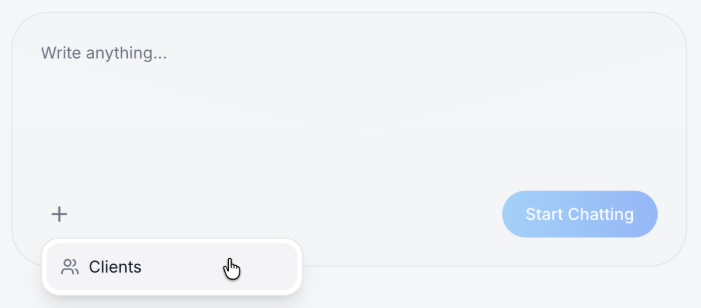
2. Optional: link a client. Click the + in the message box, then click Clients.
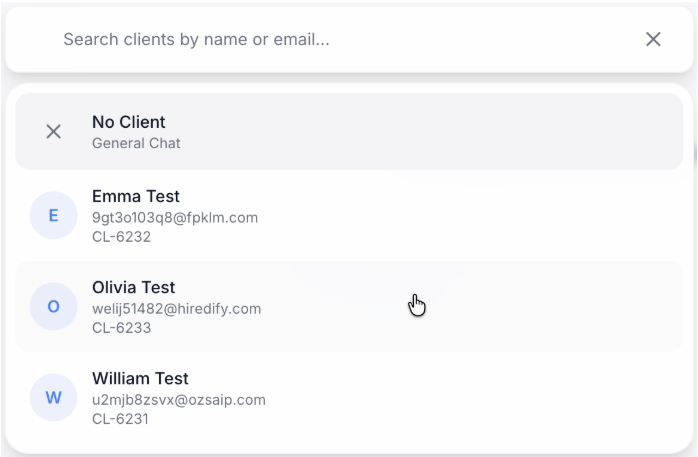
3. Choose the client. Search by name or email, then click the client. Each client shows their email and client ID. To chat without a client, choose No Client – General Chat.
4. Check the client context. The client’s name appears above the message box, with the date the context was last updated, for example Context updated Sep 26, 2026. Click Refresh to update it with the client’s latest record. Click the x next to the name to remove the client.
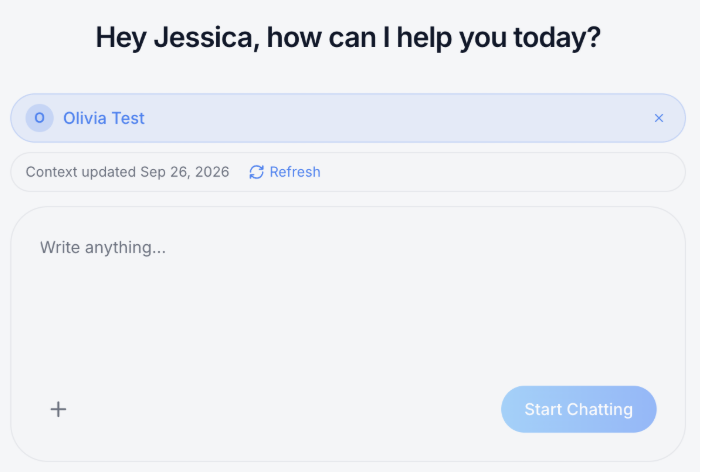
5. Type your question in Write anything…, then click Start Chatting. Pro GPT answers below your question. To follow up, type in Write anything… at the bottom and click Send. The chat is saved on the left, named after your first message. Click it to go back to it later, or use Search to find it.
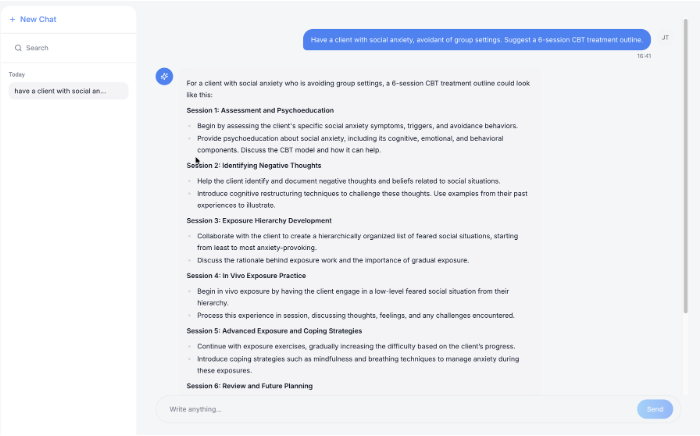
Tip: Pro GPT’s answers are suggestions to support your clinical judgement. Always review them before you use them with a client.

