The Pro Activities tab shows the activities you’ve shared with the client, such as a guided meditation or a breathing technique, with a due date for each. Use it to share a new activity, change one, or remove it.
Note: All clients, names, emails, appointments and other data shown in the screenshots are sample data we created for this guide. They are not real people or real records.
When to use this
- You want to recommend your client to practise something between sessions, such as Yoga Nidra, HRV Breathing Technique or any other custom activity.
- You need to change an activity’s due date or description.
- You want to check which activities you’ve sent to a client.
Open the Pro Activities tab
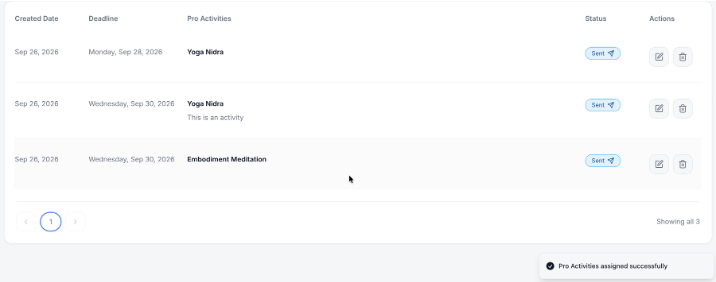
In Clients, click the client’s name, then click the Pro Activities tab. Each activity shows its Created Date, Deadline, name and description, Status (for example Sent) and Actions. To find an activity, type in Search by keyword.
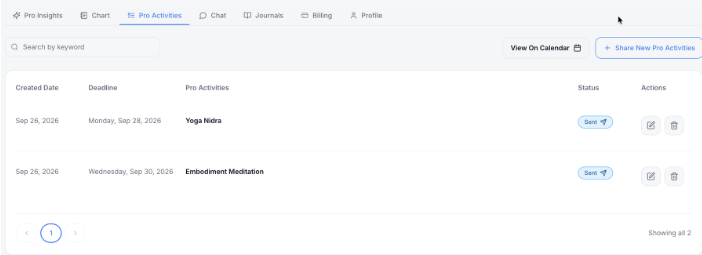
Click View On Calendar to see the client’s activities on a calendar.

Share a new activity
There are two ways to open the Share with a client window. Both open the same form.
Option 1: From the client’s Pro Activities tab
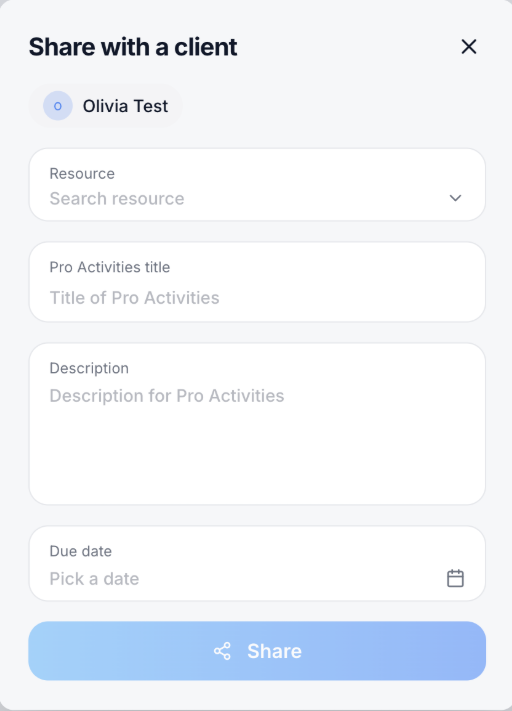
1. On the client’s Pro Activities tab, click Share New Pro Activities. The Share with a client window opens with the client’s name already filled in.
Option 2: From the + button on any page
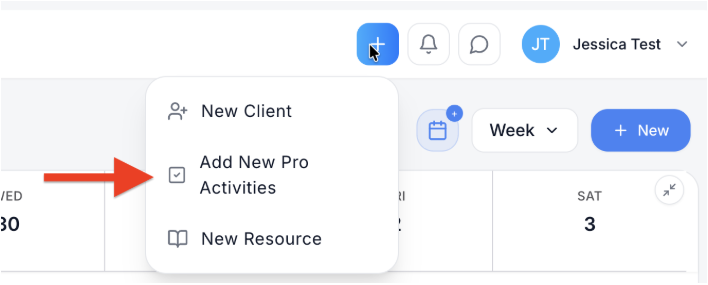
1. Click the blue + button at the top of the screen, then choose Add New Pro Activities.
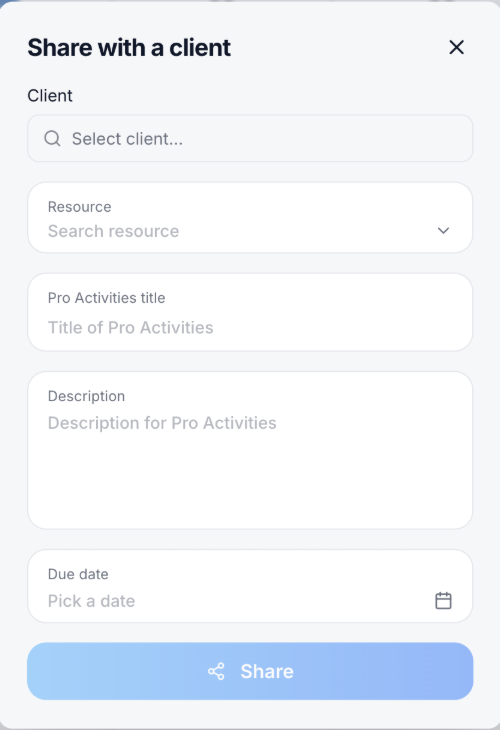
2. Under Client, click Select client… and choose the client. Because you didn’t start from a client’s profile, the form has a Client field at the top.
Fill in the activity
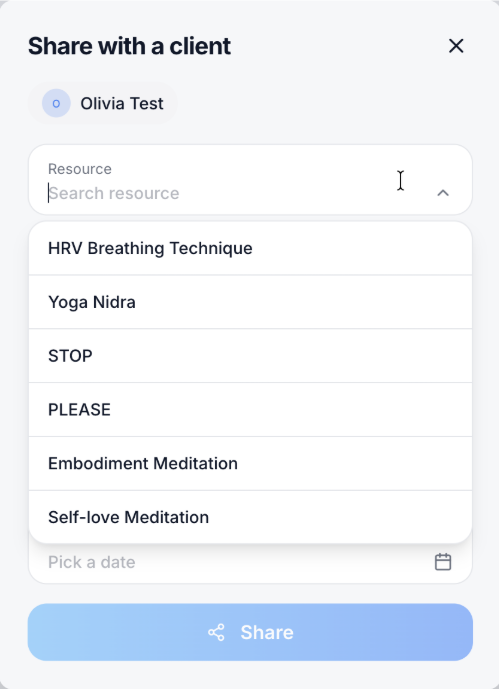
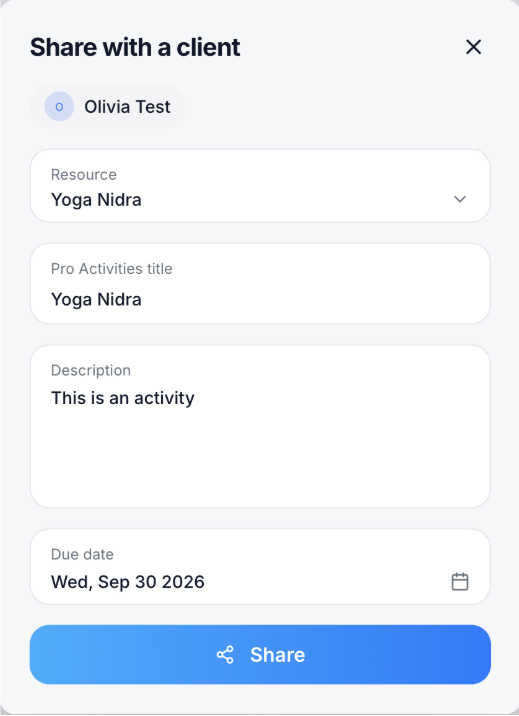
1. Click Resource and choose the activity. The list shows the resources in your library, such as HRV Breathing Technique, Yoga Nidra, STOP, PLEASE, Embodiment Meditation and Self-love Meditation. Type to search the list. The Pro Activities title fills in with the resource’s name. You can change it.
2. Optional: add a Description, for example what you’d like the client to focus on.
3. Click Due date and choose when the client should complete it.
4. Click Share. A Pro Activities assigned successfully message appears, and the activity is added to the client’s Pro Activities list with the status Sent.
Edit an activity
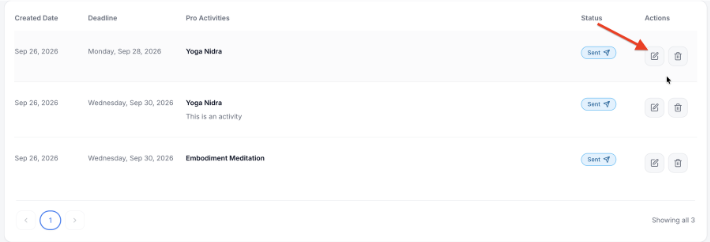
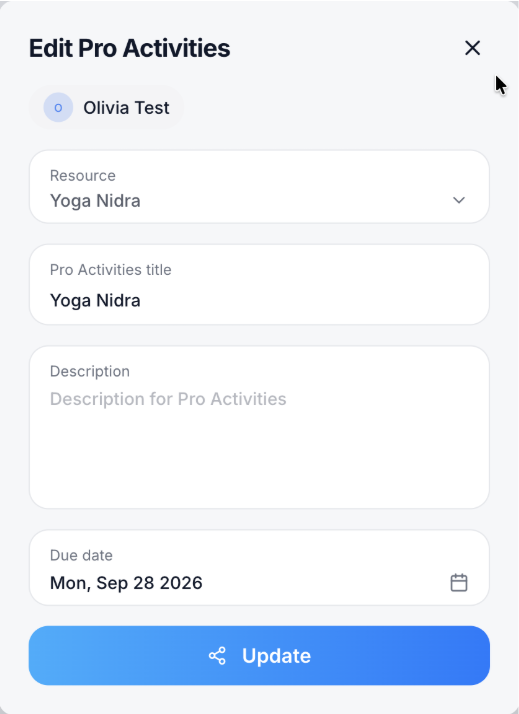
1. In the Actions column, click the edit icon (pencil) on the activity. The Edit Pro Activities window opens.
2. Change the resource, title, description or due date, then click Update.
Delete an activity
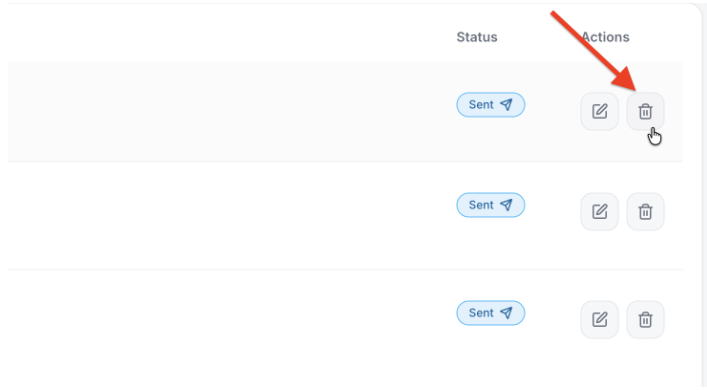
In the Actions column, click the trash icon on the activity you want to remove.
Tip: Activities come from your Resources. To share something that isn’t in the Resource list, add it to Resources first.

