Edit an appointment to change its date or time, the service, the note format AI uses for your clinical note, the description, or the transcription settings.
Note: All clients, names, emails, appointments and other data shown in the screenshots are sample data we created for this guide. They are not real people or real records.
When to use this
- A client asks to move their session to another day or time.
- You want AI to write the clinical note in a different format, such as BIRP or DAP instead of SOAP.
- You want the session transcribed automatically, or in another language.
- You want to add a description or attachment to the appointment.
Steps
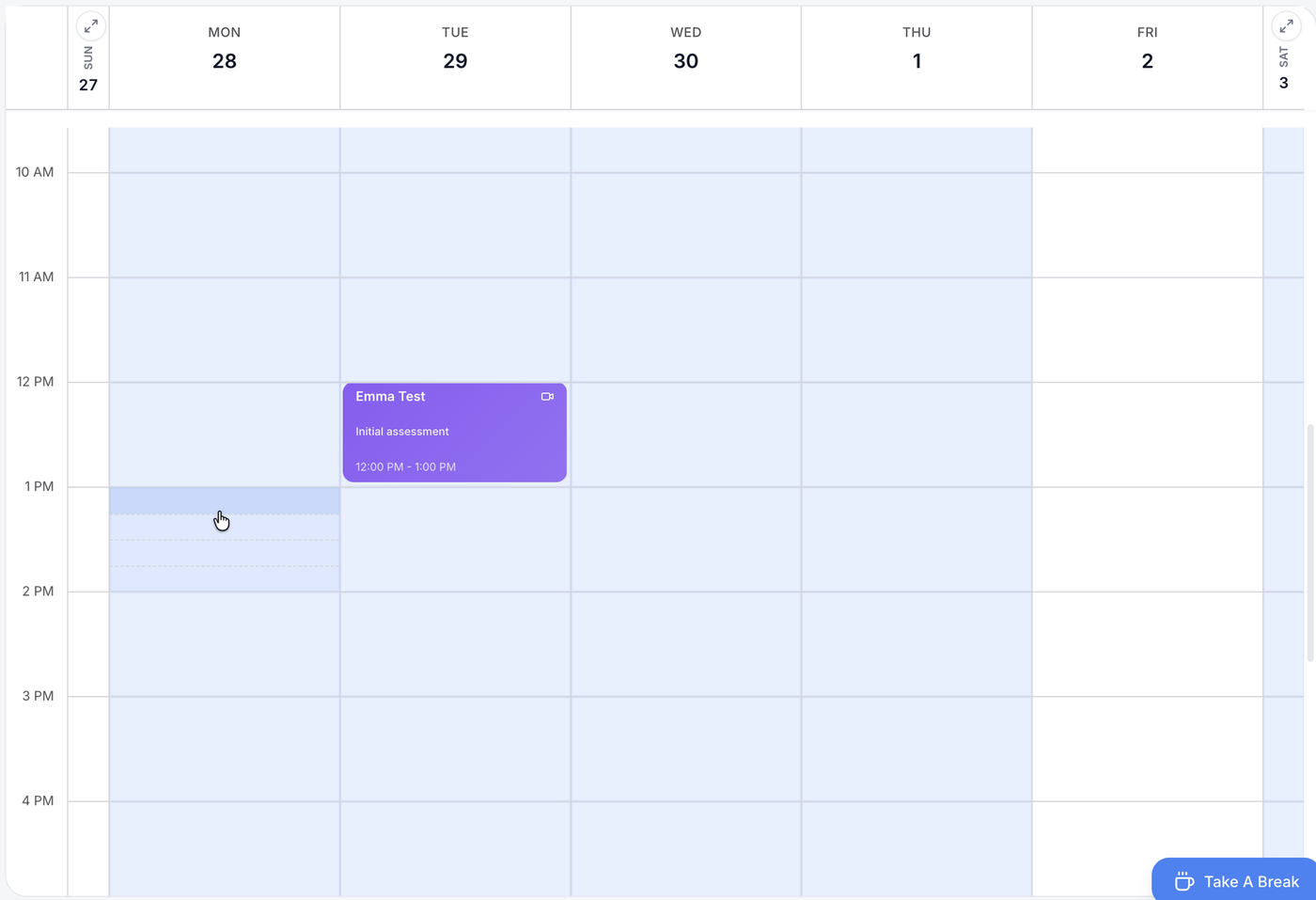
1. In Pro Calendar, click the appointment you want to change.
Appointments show on your calendar with the client’s name, the service and the time.
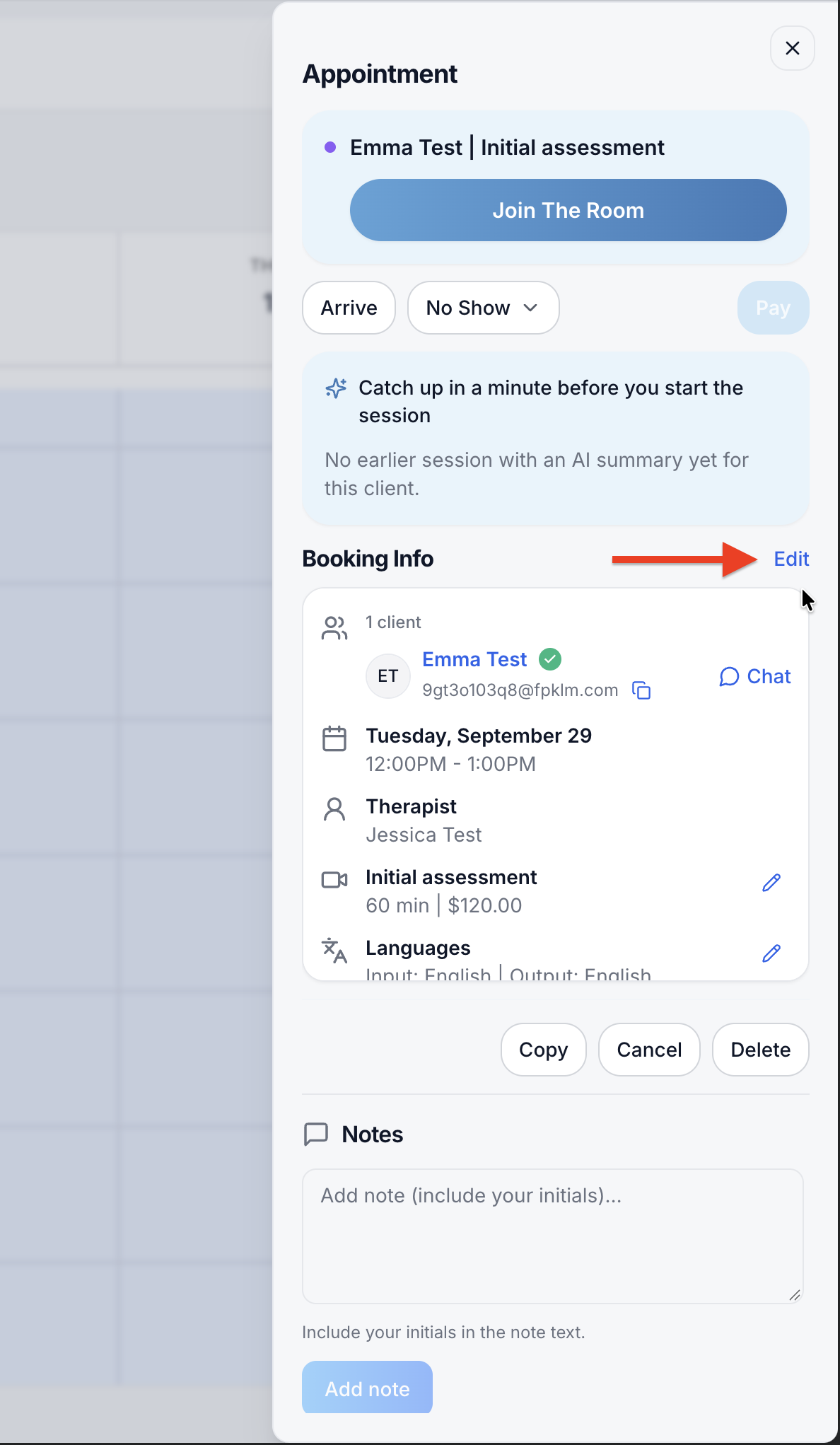
2. In the Appointment panel, click Edit next to Booking Info.
The Appointment panel opens on the right with the booking details: the client, date and time, therapist, service and languages. Clicking Edit opens the Edit Appointment panel.
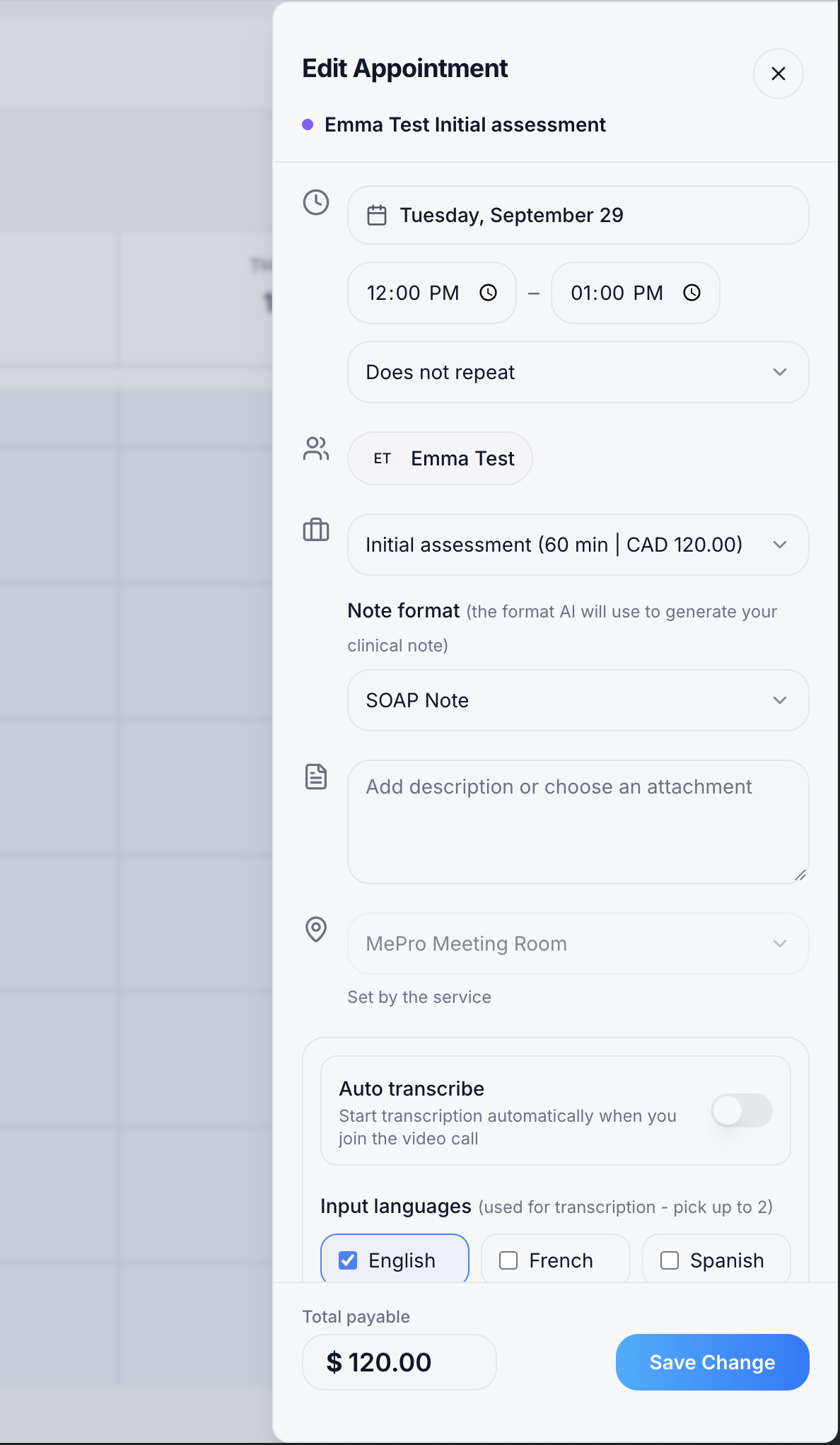
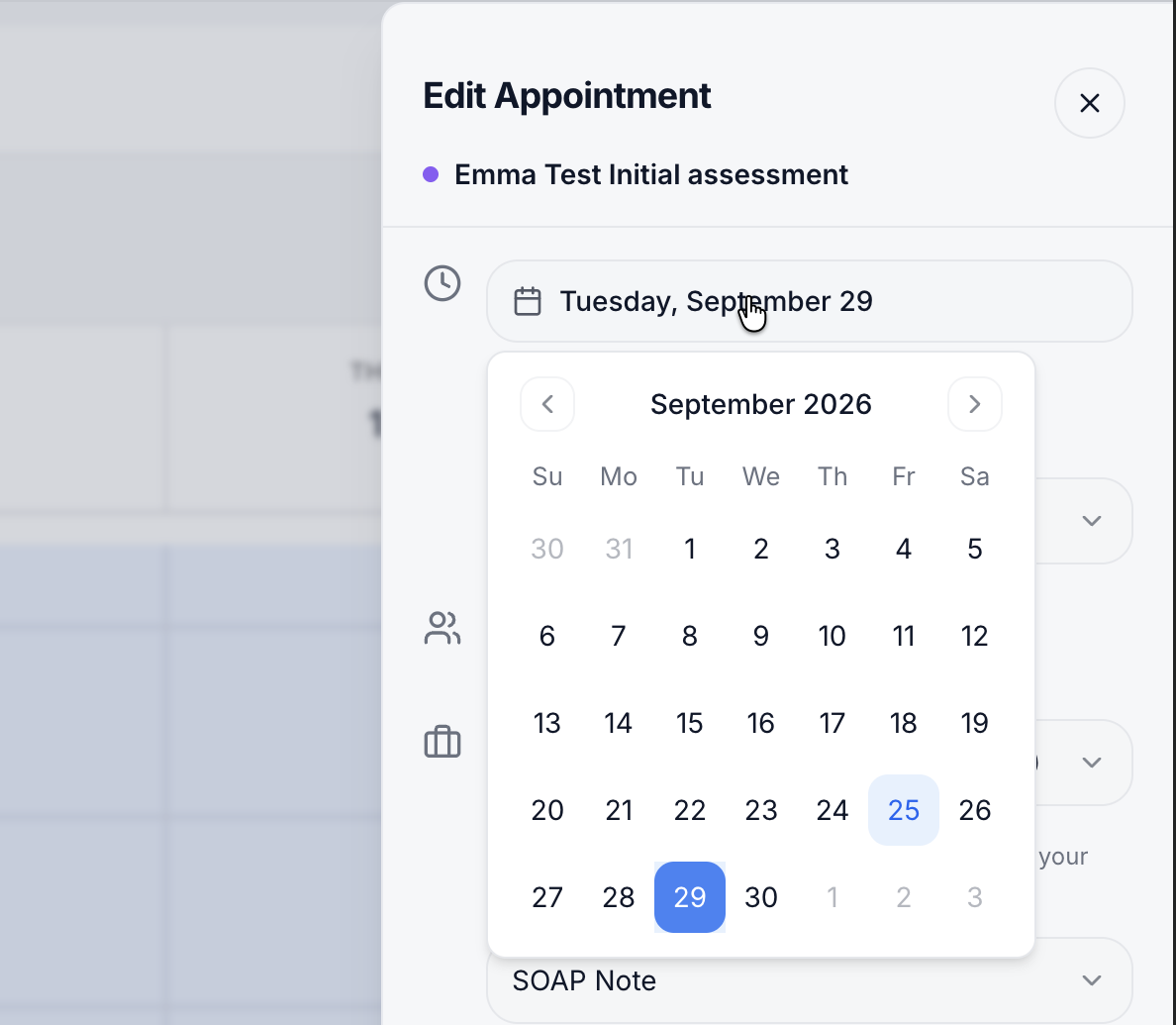
3. To change the date, click the date and choose a new day.
A month calendar opens. The appointment’s current date is highlighted. Use the arrows to move to another month.
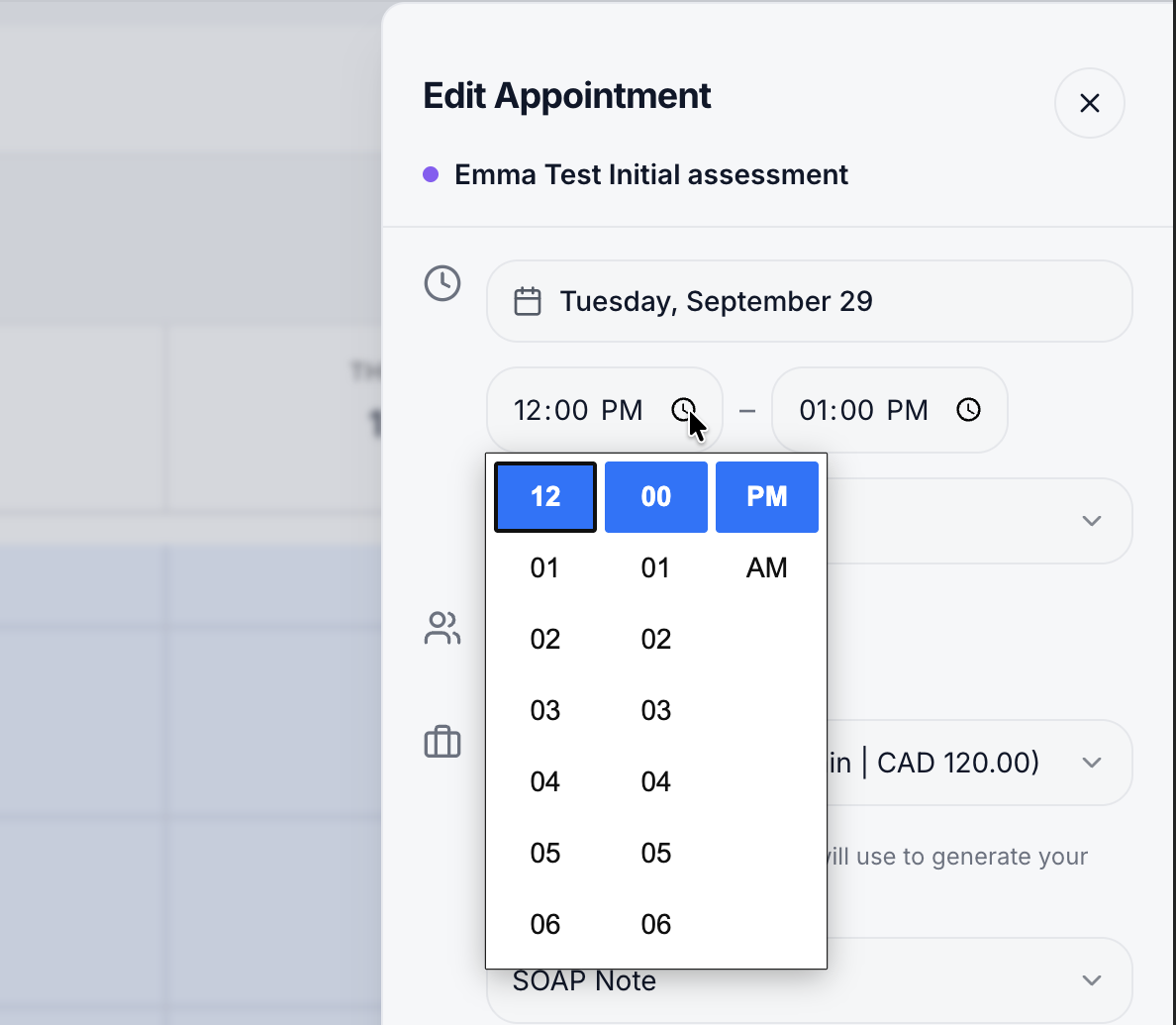
4. To change the time, click the clock icon next to the start time, then the clock icon next to the end time.
Pick the hour, minutes and AM or PM from the list.
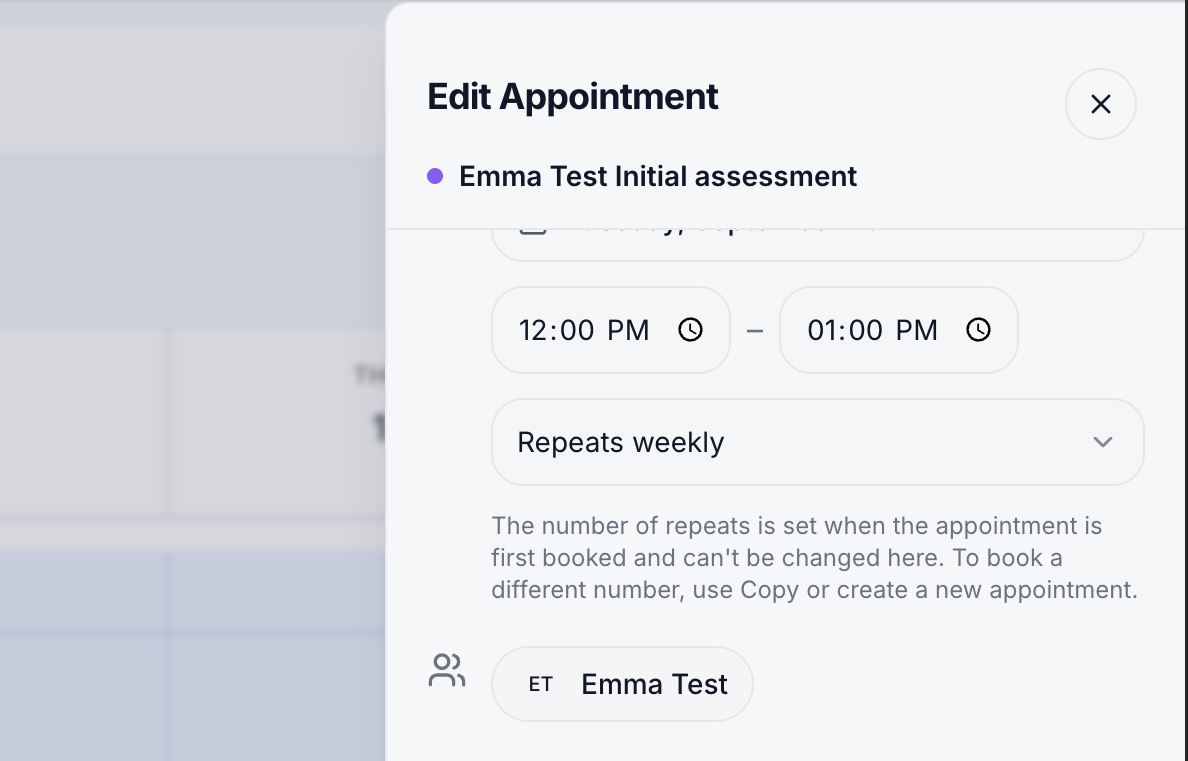
5. Check the repeat setting.
For a repeating appointment, the number of repeats can’t be changed here. It’s set when the appointment is first booked. To book a different number of repeats, use Copy in the Appointment panel or create a new appointment.
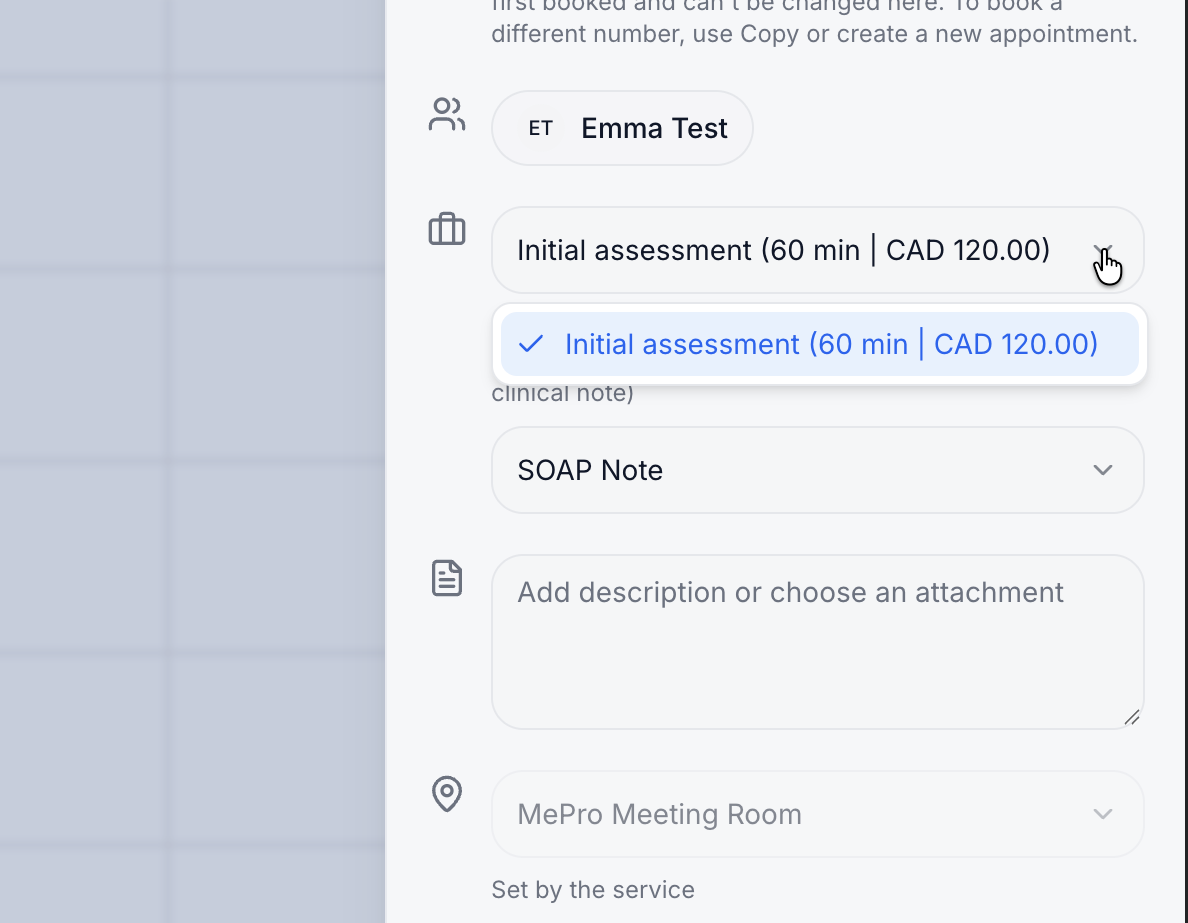
6. To change the service, click the service and choose another one.
Each service shows its length and price, for example Initial assessment (60 min | CAD 120.00). The location is Set by the service, so it updates to match the service you choose.
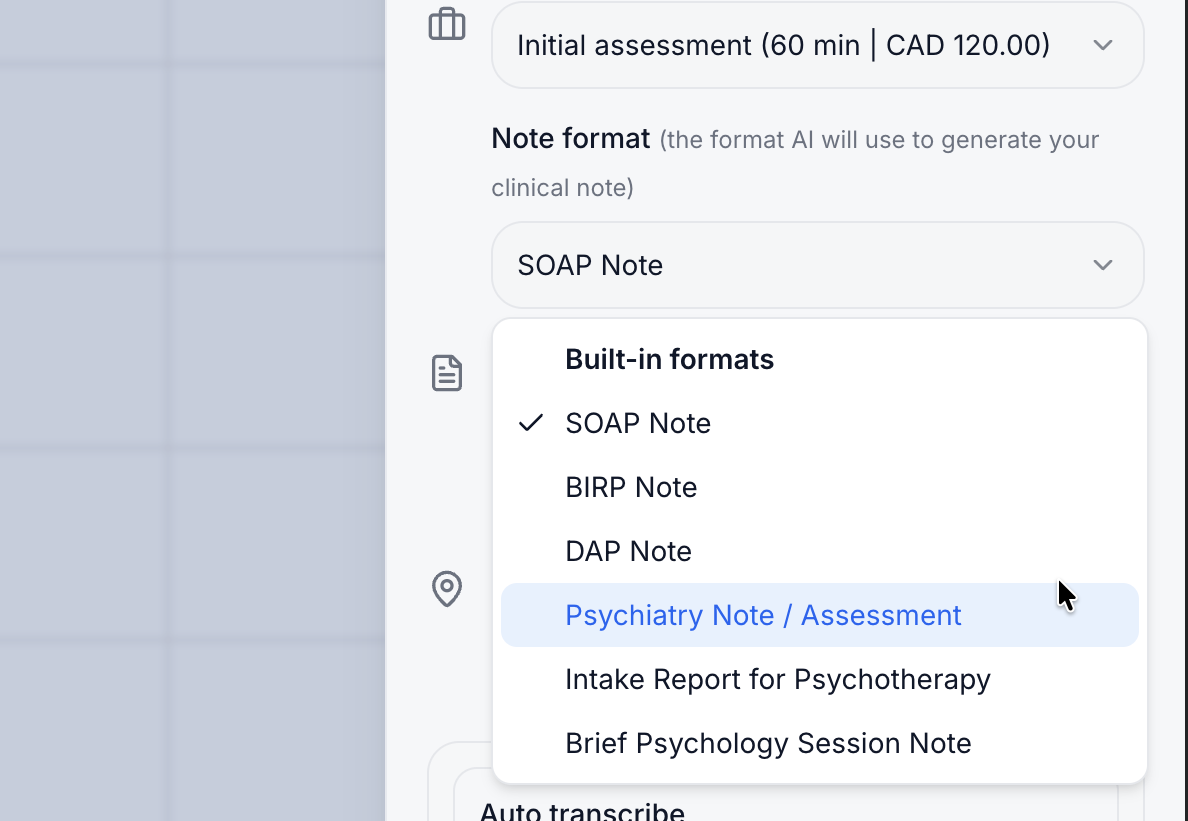
7. Choose the Note format.
This is the format AI will use to generate your clinical note for this session. Under Built-in formats, choose SOAP Note, BIRP Note, DAP Note, Psychiatry Note / Assessment, Intake Report for Psychotherapy or Brief Psychology Session Note.
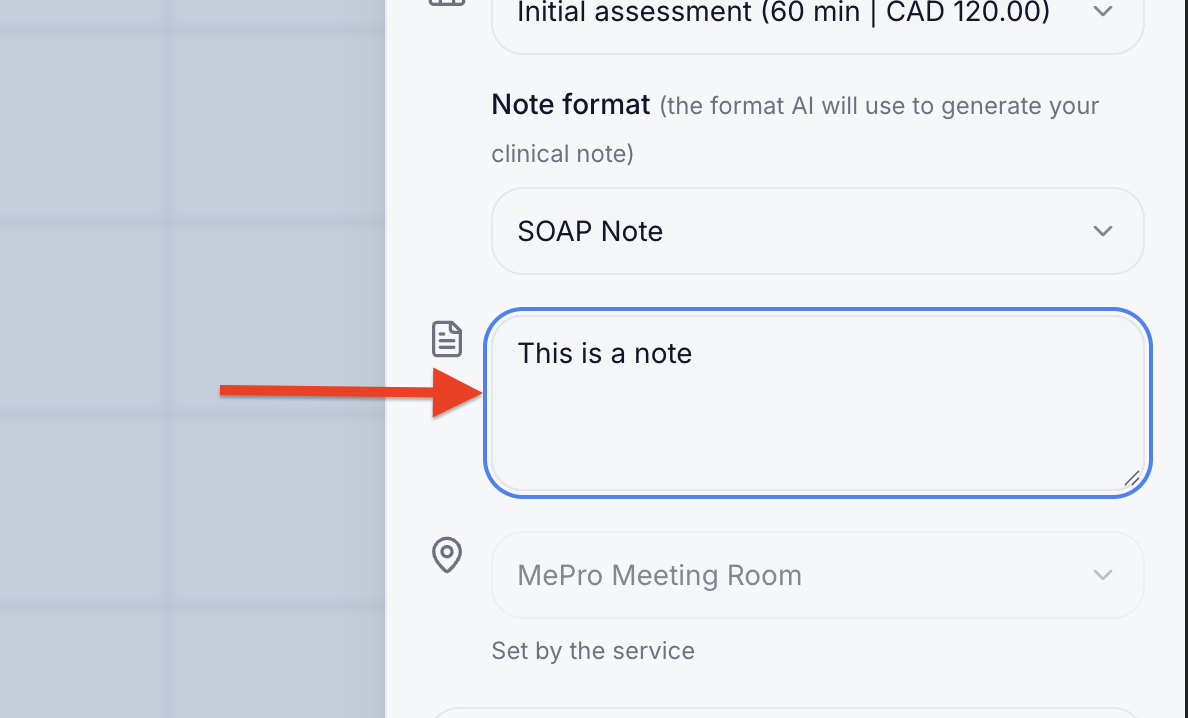
8. Optional: add a description or attachment.
Click Add description or choose an attachment and type your description.
9. Set the transcription options.
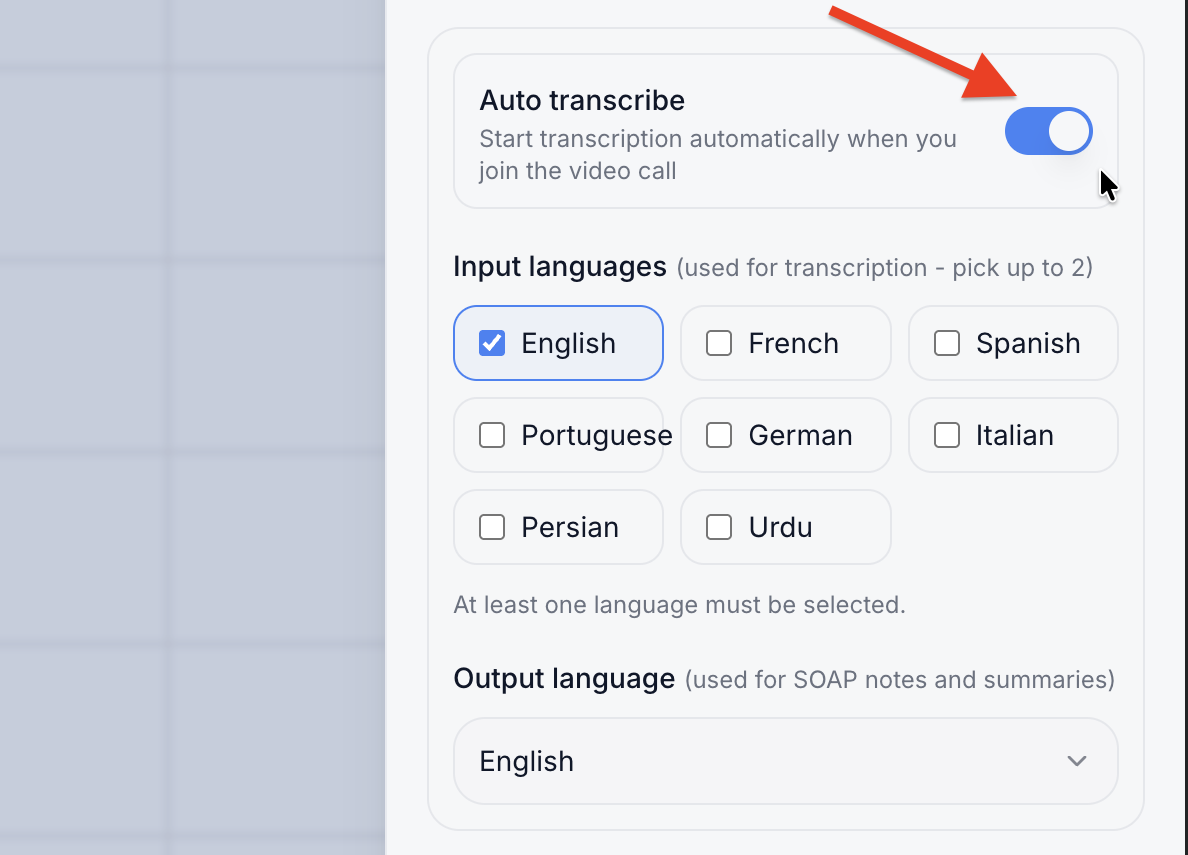
Turn on Auto transcribe to start transcription automatically when you join the video call.
Under Input languages, select the language or languages spoken in the session. You can pick up to 2, and at least one must be selected.
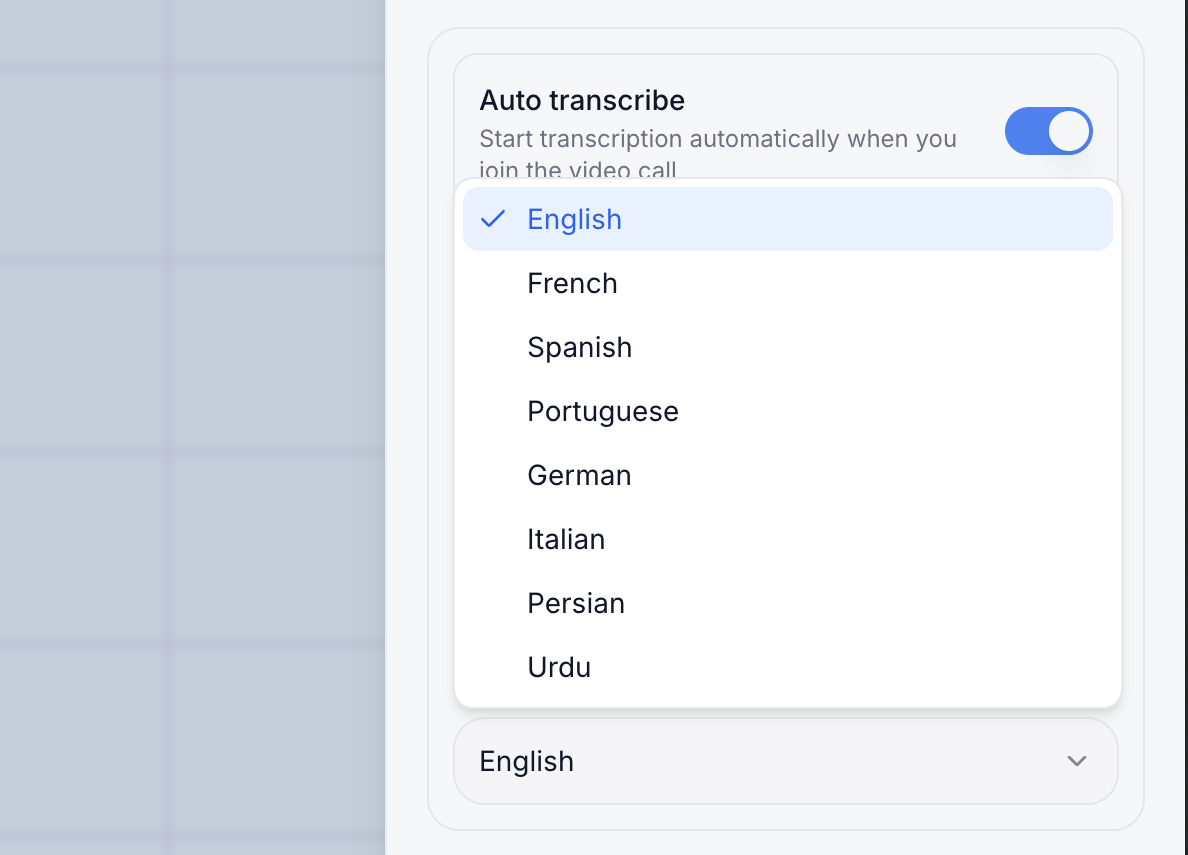
Under Output language, choose the language for your SOAP notes and summaries.
10. Check Total payable, then click Save Change.
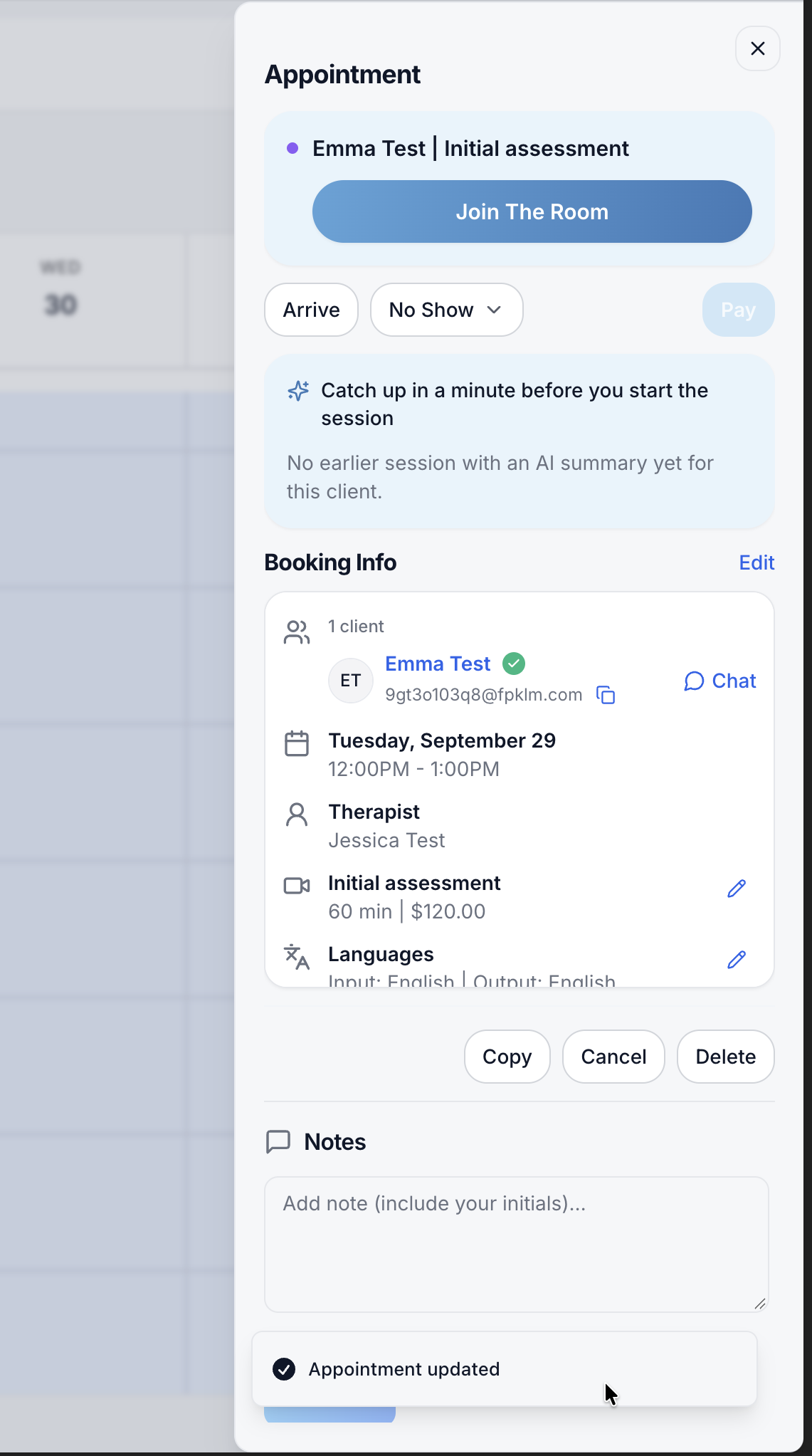
The button shows Saving… while your changes are saved. The panel returns to the appointment details, and a message confirms Appointment updated. Your calendar shows the new details.